Your text
Import from YouTube
Paste a link to a video with Korean captions. The captions become your text and the video plays along as you type.
Your Korean text
Paste Korean text below. Spaces split it into words (eojeol), and each word is read aloud after you type it.
Typing
Results
How korean-assist works
korean-assist turns Korean you actually want to read into typing practice. Every word you type is one you read, spell, hear and (if you like) look up, so you learn vocabulary in context while building real Korean keyboard skills.
-
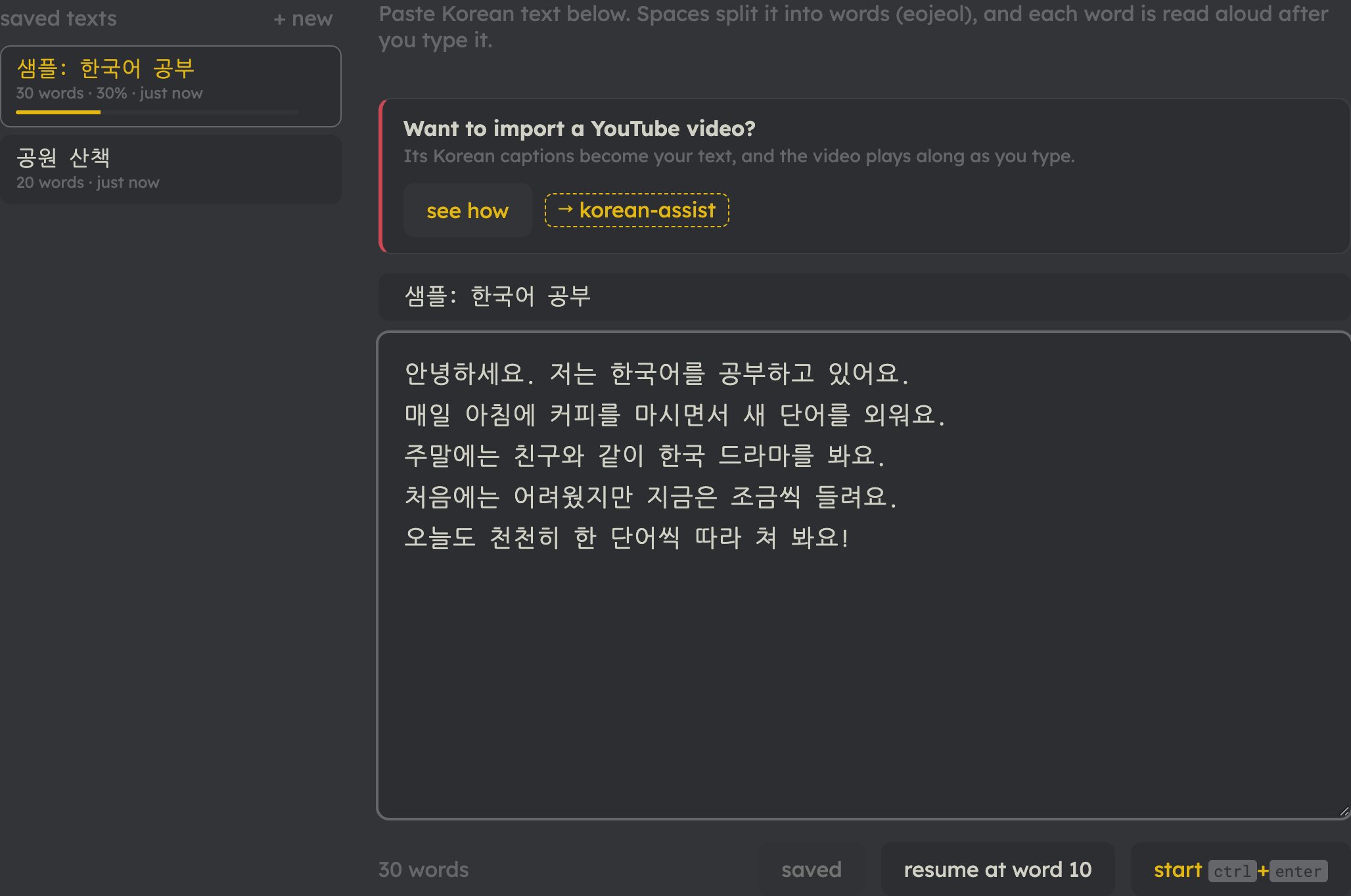
1Bring your own Korean
Paste anything: a textbook dialogue, a news article, song lyrics you’re learning, your own diary. Or import a YouTube video’s captions (see “Want to import a YouTube video?”). Save texts to your library and pick up where you left off.
-
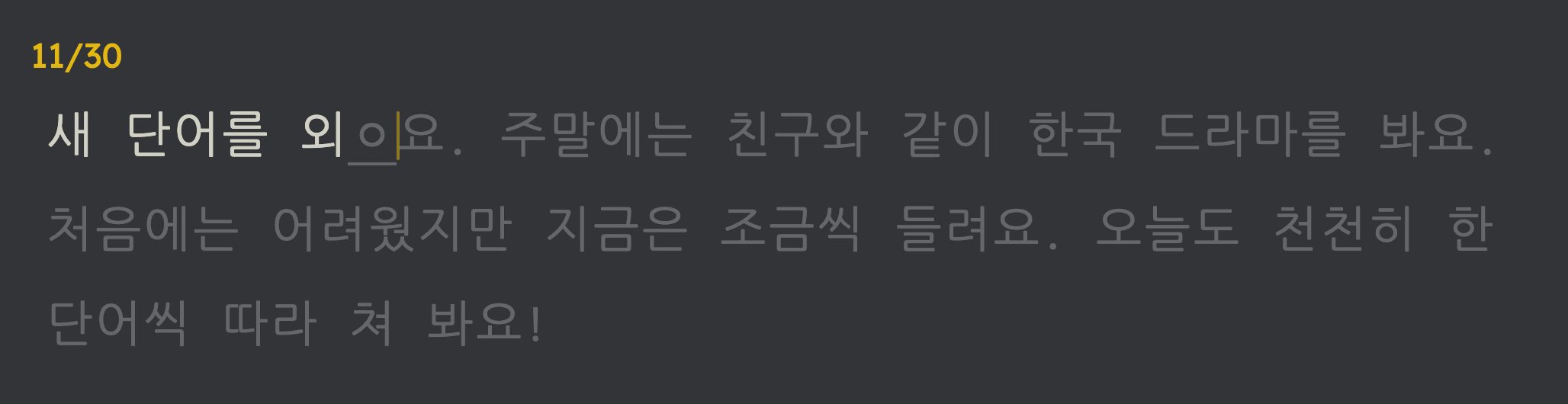
2Type it, word by word
Finished words turn white, mistakes turn red, and a syllable you’re still building shows the jamo typed so far, underlined (ㅎ → 하 → 한). Press space for the next word; backspace on an empty word goes back to fix a mistake.
- You need a Korean keyboard turned on. On a Mac: System Settings → Keyboard → Input Sources → add “2-Set Korean”. On Windows: Settings → Time & language → Language → add Korean.
-
3Hear every word
Each word is read aloud as you finish it, linking how it sounds to how it’s spelled. For texts imported from YouTube, the video itself plays the part you just typed, so you hear the real speaker. You can choose how much plays in settings, and ctrl+s says it again.
-
4Look up any word instantly
Press ctrl+d after a word you don’t know. A banner shows its dictionary form, what it means in this sentence, and how it breaks down into the word and its particles or endings, without interrupting your typing. Meanings are shown in your language.
-
5Ask 선생님 when you’re stuck
선생님 is the Korean tutor behind the round button in the corner of every screen, and already knows what you’re typing: the sentence, the word under the caret and the words you just got wrong, so you can simply ask “why was that wrong?” or “what does this ending do?”. It’s free with an account, up to a daily number of messages, and premium gives you more.
-
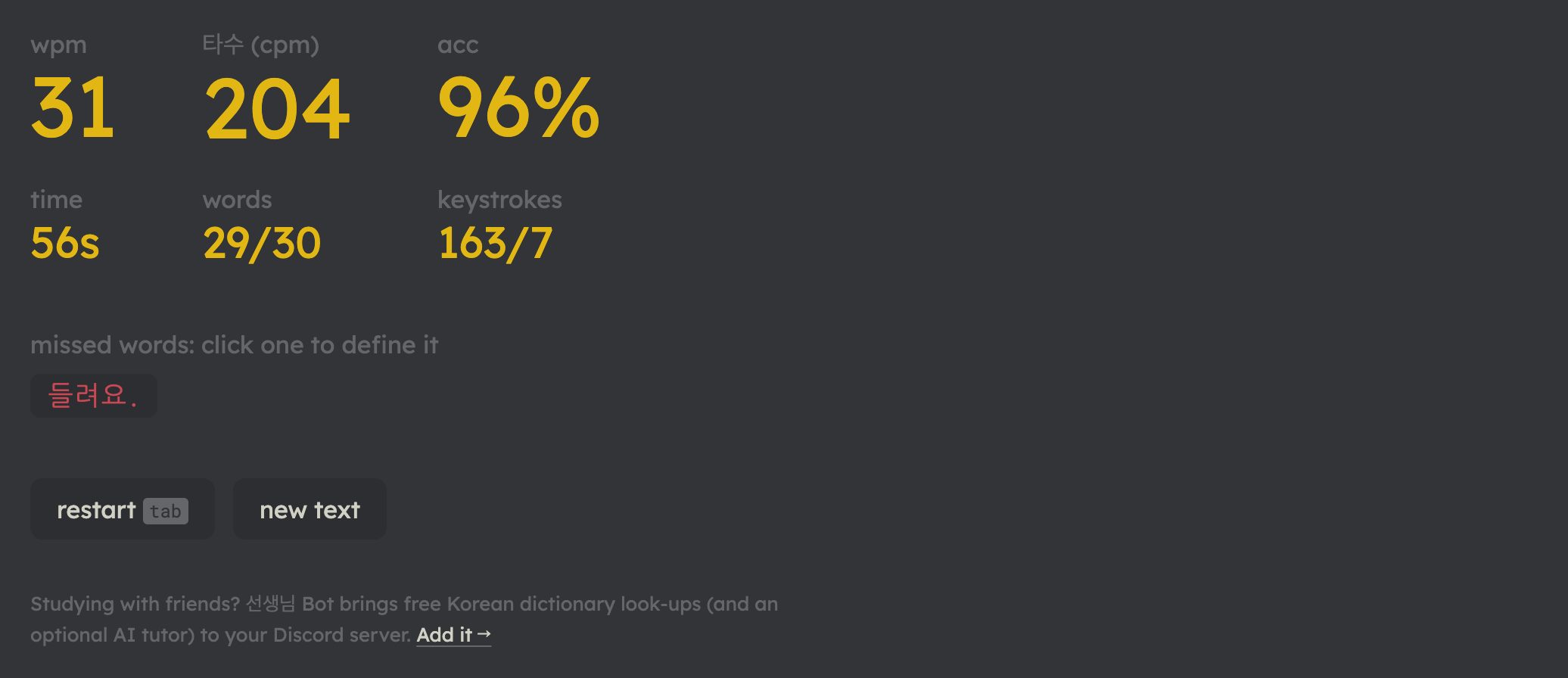
6See your progress
Finish a text to see your speed (wpm and 타수, the usual Korean keystrokes-per-minute), your accuracy, and the words you missed. Click a missed word to look it up. Long texts remember your place, so you can practice a few minutes a day.

Why typing helps you learn
- You can’t skim. Typing makes you notice every syllable, particle and ending you might read past.
- Sound, spelling and meaning together. Seeing, typing and hearing a word at the same moment helps it stick.
- Vocabulary in context. Words come from real sentences you chose, and look-ups explain them as used there.
- A real skill on the side. You build Korean keyboard fluency you’ll use for chatting, searching and writing.
Everything you practice with here is free. Premium gives you more of the extras. see pricing